tiles
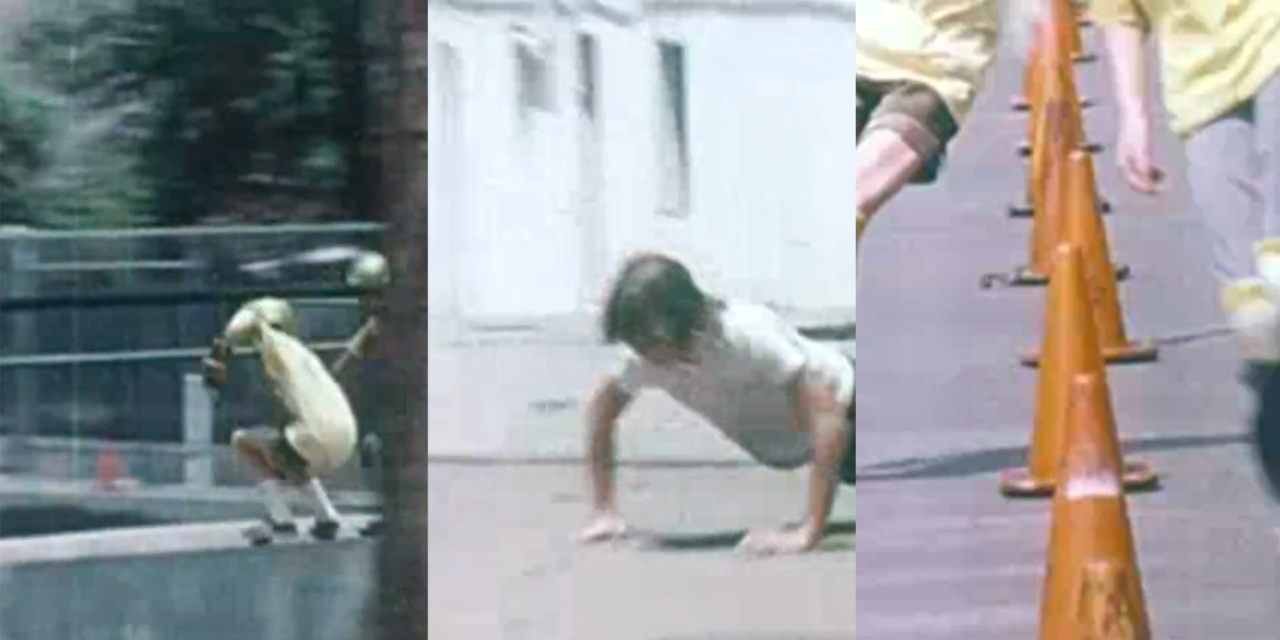
trim, concatenate, and tile videos using a variety of layouts, audio settings and transition affects. automated "editor" processes for making video "collages".
tiles
A TUI-first toolkit for video processing: cleaning/organizing footage, scene detection, trimming, concatenating, and creating tiled video layouts. So, it is not just about tiles, but that is a nice short name that surely nobody else has ever used for a project.
Quick Start
Prereq: install ffmpeg/ffprobe (see Requirements below).
python3 tui/app.py
CLI (direct script):
# From repo root
python -m video_tiling.tile_videos
Requirements
- Python 3.8+
- ffmpeg and ffprobe
- PySceneDetect (only for video_tiling.detect_scenes)
Installing ffmpeg
On macOS:
brew install ffmpeg
On Linux:
sudo apt-get install ffmpeg
On Windows: Download from ffmpeg.org
Installing Python dependencies (optional)
Only required for video_tiling.detect_scenes.
# Create virtual environment (one-time setup)
python3 -m venv venv

# Activate virtual environment (do this each time)
source venv/bin/activate

# Install dependencies
pip install -r requirements.txt
Note: The other tools work without Python dependencies beyond the standard library.
Project Structure
Organize your videos in a src/ folder for convenience:
your-project/
├── configs/
│   └── tile_videos_settings.json  # Auto-saved settings
├── outputs/
│   ├── scenes/               # Auto-created by detect script
│   ├── trimmed/              # Auto-created by trim script
│   ├── concatenated/         # Auto-created by concat script
│   ├── tiled/                # Auto-created by tile script
│   └── tui-logs/             # TUI logs
├── src/                      # Put your video folders here
│   ├── scene1/
│   ├── scene2/
│   └── camera1/
├── tui/
│   └── app.py                # Main TUI entrypoint
├── video_tiling/             # Core tools package
│   ├── clean_folder.py
│   ├── detect_scenes.py
│   ├── trim_videos.py
│   ├── concat_videos.py
│   └── tile_videos.py
└── venv/                     # Virtual environment (for video_tiling.detect_scenes)
Folder Path Resolution:
- Folder names without
/are automatically looked up insrc/first - Example:
scene1→ looks forsrc/scene1/ - Absolute paths (
/path/to/folder) and relative paths (./folder,../folder) work as-is
Scripts Overview
1. clean_folder - Clean and Organize Folders
Remove duplicate videos and/or rename files by modification date. Great for organizing raw footage.
Features:
- Find and remove duplicate videos by content (not just filename)
- Rename files by last modified date with consistent formatting
- Optional sequential numbering (01_, 02_, etc.)
- Keeps first file alphabetically when duplicates found
- Shows space freed after removing duplicates
- Auto-resolves folders from
src/
Usage:
# Interactive mode
python -m video_tiling.clean_folder my_footage

# Process multiple folders
python -m video_tiling.clean_folder folder1 folder2

# Skip prompt - remove duplicates only
python -m video_tiling.clean_folder my_footage -m 1

# Rename by date only
python -m video_tiling.clean_folder my_footage -m 2

# Both operations
python -m video_tiling.clean_folder my_footage -m 3

# Add sequential numbers when renaming
python -m video_tiling.clean_folder my_footage -m 2 -n
Example:
python -m video_tiling.clean_folder src/raw_footage
You'll be prompted:
Clean Folder Options:
  1. Remove duplicates only
  2. Rename by date only
  3. Both - remove duplicates, then rename remaining files

Select operation (1-3): 3
Duplicate Removal Output:
Found 2 group(s) of duplicates:

Group 1:
  Keeping: clip_001.mp4
  Removing:
    ✓ COPY_clip_001.mp4 (45.23 MB)
    ✓ duplicate_clip.mp4 (45.23 MB)

Removed 2 duplicate file(s)
Freed 90.46 MB
Rename Output (without -n):
✓ clip_001.mp4 → 2024-01-15_14-30-45.mp4
✓ clip_002.mp4 → 2024-01-15_14-32-10.mp4
Rename Output (with -n):
✓ clip_001.mp4 → 01_2024-01-15_14-30-45.mp4
✓ clip_002.mp4 → 02_2024-01-15_14-32-10.mp4
Common Workflows:
- Organize raw footage:
-m 3(remove duplicates + rename) - Find storage hogs:
-m 1(duplicates only, see how much space you free) - Chronological naming:
-m 2 -n(numbered by date for easy sorting)
2. detect_scenes - Scene Detection
Automatically detect scene changes in videos and split them into separate clips.
Features:
- Two detection algorithms: Content-aware and Adaptive
- Adjustable sensitivity thresholds
- List-only mode to preview scenes without splitting
- Fast splitting using ffmpeg stream copy
- Detailed scene statistics and timecodes
- Auto-resolves folders from
src/
Requirements:
# Activate virtual environment first
source venv/bin/activate
Usage:
# Detect and split a single video
python -m video_tiling.detect_scenes my_film.mp4

# Process videos from src/ folder
python -m video_tiling.detect_scenes my_footage

# List scenes without splitting
python -m video_tiling.detect_scenes my_film.mp4 --list-only

# Skip interactive prompts
python -m video_tiling.detect_scenes my_film.mp4 -m content -t 27.0
Example:
source venv/bin/activate
python -m video_tiling.detect_scenes src/my_film/video.mp4
You'll be prompted:
Detection method:
  1. Content-aware (default) - Best for most videos
  2. Adaptive - Better for videos with gradual lighting changes

Select detection method (1-2, default 1): 1

Content detection threshold (default: 27.0)
  Lower values (15-25): More sensitive, detects subtle changes
  Higher values (30-40): Only detects clear scene changes

Threshold (default 27.0): 25
Output:
- Scene list with timecodes and statistics
- Individual scene files:
outputs/scenes/video/video-Scene-001.mp4,video-Scene-002.mp4, etc.
Custom output directory:
python -m video_tiling.detect_scenes my_film.mp4 -o my_scenes
Threshold Guidelines:
- Films/Movies: 27-30 (default works well)
- Fast-cut content (music videos, sports): 20-25
- Slow content (documentaries, talks): 30-40
3. trim_videos - Trim Videos
Trim videos from multiple folders with custom start/end trim values per folder.
Features:
- Set different trim values for each folder
- Preserves original videos
- Interactive prompts for ease of use
- Auto-resolves folders from
src/
Usage:
# Using src/ folders (recommended)
python -m video_tiling.trim_videos scene1 scene2

# Or with full paths
python -m video_tiling.trim_videos src/scene1 src/scene2

# Or absolute paths
python -m video_tiling.trim_videos /path/to/raw_footage/scene1 /path/to/raw_footage/scene2
Example:
# If you have src/scene1/ and src/scene2/
python -m video_tiling.trim_videos scene1 scene2
You'll be prompted:
Folder: raw_footage/scene1
Trim from start (seconds, 0 for none): 2
Trim from end (seconds, 0 for none): 1.5
Output:
outputs/trimmed/scene1/video1.mp4outputs/trimmed/scene2/video1.mp4
Custom output directory:
python -m video_tiling.trim_videos folder1 -o my_trimmed_videos
4. concat_videos - Concatenate Videos
Concatenate all videos in folders with optional transitions between clips.
Features:
- Videos sorted alphabetically by filename
- Three transition types: Simple Cut, Cross-Dissolve, Fade to Black
- Custom transition duration per folder
- One output video per folder
- Auto-resolves folders from
src/
Usage:
# Using src/ folders (recommended)
python -m video_tiling.concat_videos intro main outro

# Or with full paths
python -m video_tiling.concat_videos src/intro src/main src/outro
Example:
# If you have src/intro/, src/main/, src/outro/
python -m video_tiling.concat_videos intro main outro
You'll be prompted for each folder:
Folder: clips/intro
Found 5 video(s)

Transition type:
  1. Simple Cut (no transition) - Fast, no re-encoding
  2. Cross-Dissolve (fade) - Videos blend into each other
  3. Fade to Black - Fade out to black, then fade in

Select transition type (1-3): 2
Transition duration in seconds (e.g., 1.0): 1.5
Output:
outputs/concatenated/intro_concatenated.mp4outputs/concatenated/main_concatenated.mp4outputs/concatenated/outro_concatenated.mp4
Custom output directory:
python -m video_tiling.concat_videos folder1 -o my_concatenated_videos
5. tile_videos - Create Tiled Video Layouts
Create professional tiled video compositions with multiple videos playing simultaneously.
Features:
- 10 layout options (grids, PiP, custom layouts)
- Distribution mode - automatically split clips from one folder across tiles
- Per-tile transitions
- Per-tile playback speed (slow/normal/fast)
- Per-tile mode: video or image slideshow
- Crop position control (top, bottom, left, right, center, corners)
- Settings memory - reuse your last configuration
- Preview mode - test with 2-3 videos before full render
- Optional audio disable
- Max duration per folder and max total output duration
Usage:
python -m video_tiling.tile_videos
TUI (full-screen wizard + settings editor + run panel):
python3 tui/app.py
TUI Tools / Doctor:
- Re-encode CFR (fix freeze frames / timestamp issues)
- Split landscape videos into
landscape/ - Launch existing scripts (clean/trim/concat/detect) in terminal mode
Example Workflow:
- Select Layout:
Available layouts:
  1. 2x1 - Two tiles side-by-side
  2. 1x2 - Two tiles stacked vertically
  3. 2x2 - Four tiles in 2x2 grid
  ...

Select layout (1-10): 3
- Choose Crop Mode:
How should videos be fitted to tiles?
  1. Crop to fill (no padding, may cut edges)
  2. Pad to fit (black bars if needed)
  3. Stretch to fill (may distort)

Select fit mode (1-3, default 1): 1
- Assign Folders to Tiles:
Note: Folder names without '/' are looked up in 'src/' first

Folder for tile 1: top-left
Folder for tile 2: top-right
Folder for tile 3: bottom-left
Folder for tile 4: bottom-right
- Configure Each Tile:
Tile 1: 5 video(s) from 'videos/top-left'
  1. Simple Cut
  2. Cross-Dissolve
  3. Fade to Black

Transition for tile 1 (1-3): 2
Transition duration (seconds): 1.0

Crop position for tile 1:
  1. Center (default - crop evenly from all sides)
  2. Top (keep top, crop bottom)
  3. Bottom (keep bottom, crop top)
  4. Left (keep left, crop right)
  5. Right (keep right, crop left)
  ...

Select crop position (1-9, default 1): 2
- Select Audio Source:
Which folder's audio should be used?
  1. videos/top-left
  2. videos/top-right
  3. videos/bottom-left
  4. videos/bottom-right

Audio from folder (1-4): 1
- Preview or Full Render:
Render mode:
  1. Full - Process all videos (default)
  2. Preview - Use only 2-3 videos per folder for quick test

Select mode (1-2, default 1): 2
Output:
- Filename:
outputs/tiled/2x2_top-left_top-right_bottom-left_bottom-right.mp4
Settings Memory: Next time you run the script, you'll see:
Saved settings:
  Layout: 2x2
  Crop mode: Crop to fill
  [Your previous configuration]

Use these settings? (y/n): y
Custom output file:
python -m video_tiling.tile_videos -o my_custom_name.mp4
Custom resolution:
python -m video_tiling.tile_videos -w 3840 --height 2160 # 4K
Disable audio:
python -m video_tiling.tile_videos --no-audio
Limit video durations:
# Skip clips longer than 15 seconds
python -m video_tiling.tile_videos --max-duration 15

# Cap final output length to 120 seconds
python -m video_tiling.tile_videos --max-total-duration 120
Distribution Mode (Single Folder):
When you use the same folder for all tiles, the script automatically detects this and offers distribution modes:
Distribution mode:
  1. Round-Robin (cycling) - Each tile gets every Nth clip
  2. Sequential Blocks - Divide clips into continuous chunks
  3. Random Distribution - Shuffle and distribute randomly
  4. Shuffle then Round-Robin - Random order, evenly cycled
Distribution Examples (71 clips in 2x2 layout):
Round-Robin: Creates a cycling/staggered effect
- Tile 1: clips 1, 5, 9, 13, 17, 21... (scenes cycle across tiles)
- Tile 2: clips 2, 6, 10, 14, 18, 22...
- Tile 3: clips 3, 7, 11, 15, 19, 23...
- Tile 4: clips 4, 8, 12, 16, 20, 24...
Sequential Blocks: Each tile shows a different time period
- Tile 1: clips 1-18 (beginning)
- Tile 2: clips 19-36 (early middle)
- Tile 3: clips 37-54 (late middle)
- Tile 4: clips 55-71 (end)
Random: Shuffles clips for unexpected juxtapositions
Use Case: Perfect for splitting auto-detected scenes from a film across multiple tiles. Each clip plays only once across all tiles - no duplicates!
Available Layouts
Grid Layouts
- 2x1 - Two tiles side-by-side
- 1x2 - Two tiles stacked vertically
- 2x2 - Four tiles in 2x2 grid
- 3x1 - Three tiles side-by-side
- 1x3 - Three tiles stacked vertically
- 3x3 - Nine tiles in 3x3 grid
Special Layouts
- PiP - Picture-in-Picture (1 large + 1 small overlay in corner)
- 1+2 - One large left, two stacked right
- 2+1 - Two stacked left, one large right
- 1+3 - One large top, three small bottom
Workflow Examples
Example 1: Organize and Clean Raw Footage
# Step 1: Clean up messy raw footage folder
python -m video_tiling.clean_folder src/raw_footage -m 3 -n
# Removes duplicates, renames chronologically with numbers

# Step 2: Now you have organized files ready to process
# 01_2024-01-15_14-30-45.mp4
# 02_2024-01-15_14-32-10.mp4
# etc.
Example 2: Auto-Split Film and Create Multi-Tile View
# Activate venv for scene detection
source venv/bin/activate

# Step 1: Automatically detect and split scenes
python -m video_tiling.detect_scenes src/my_film/skateboard_video.mp4 -t 27
# Creates 71 scene clips in outputs/scenes/skateboard_video/

# Step 2: Create a 2x2 tiled video with distribution mode
python -m video_tiling.tile_videos
# Select layout: 2x2
# Select crop mode: Crop to fill
# Folder for tile 1: outputs/scenes/skateboard_video
# Folder for tile 2: outputs/scenes/skateboard_video  (same folder)
# Folder for tile 3: outputs/scenes/skateboard_video  (same folder)
# Folder for tile 4: outputs/scenes/skateboard_video  (same folder)
#
# Distribution mode: 1 (Round-Robin)
# Result: All 71 clips distributed across 4 tiles, cycling chronologically
Example 3: Complete Video Processing Pipeline
# Organize your raw footage in src/
# src/scene1/, src/scene2/, src/scene3/

# Step 1: Trim unwanted parts from raw footage
python -m video_tiling.trim_videos scene1 scene2 scene3

# Step 2: Concatenate trimmed clips per scene
python -m video_tiling.concat_videos outputs/trimmed/scene1 outputs/trimmed/scene2 outputs/trimmed/scene3

# Step 3: Create a tiled comparison video
python -m video_tiling.tile_videos
# Then enter folder names:
# - Layout: 1x3 (three stacked)
# - Folders: outputs/concatenated/scene1_concatenated, outputs/concatenated/scene2_concatenated, outputs/concatenated/scene3_concatenated
Example 4: Quick Preview Workflow
# Create tiled video with preview mode
python -m video_tiling.tile_videos
# Select preview mode (option 2)
# Review the output quickly

# If happy, run again with saved settings in full mode
python -m video_tiling.tile_videos
# Use saved settings? (y/n): y
# Select full mode (option 1)
# Gets full render with same configuration
Example 5: Multi-Angle Video
# Organize camera footage in src/
# src/camera1/, src/camera2/, src/camera3/

# Concatenate each camera angle
python -m video_tiling.concat_videos camera1 camera2 camera3

# Create side-by-side comparison
python -m video_tiling.tile_videos
# Layout: 3x1
# Folders: outputs/concatenated/camera1_concatenated, outputs/concatenated/camera2_concatenated, outputs/concatenated/camera3_concatenated
# Audio: Select main camera
Tips and Tricks
Organizing Raw Footage
- Run clean_folder first on new footage to remove duplicates and get consistent naming
- Use
-nflag for numbered files if you want guaranteed chronological order - Check freed space with
-m 1to see how many duplicates you have - Files are compared by content hash, so different filenames won't fool it
Distribution Modes for Tiling
- Round-Robin: Best for showing film progression across all tiles simultaneously
- Sequential Blocks: Good for comparing different sections/acts of a video side-by-side
- Random: Creates artistic/unexpected combinations
- Distribution mode only appears when you use the same folder for all tiles
- Each clip plays exactly once - no duplicates across tiles
Video Alignment
- Videos in the same tile play sequentially
- Shorter tiles automatically loop to match the longest tile
- All tiles start simultaneously
Crop Positions
- Top - Great for talking heads, keep faces visible
- Bottom - Keep UI elements or subtitles visible
- Center - Default, crops evenly from all sides
- Corners - Useful for specific framing needs
Performance
- Preview mode renders 2-3 videos per tile - use this to test quickly
- Simple Cut transitions are fastest (no re-encoding)
- Cross-Dissolve and Fade to Black require re-encoding
- Max total duration trims clip selection early to reduce processing time
File Naming
- Videos are processed alphabetically by filename
- Use numbered prefixes for specific order:
01_intro.mp4,02_main.mp4, etc. video_tiling.clean_folder -nautomatically adds numbered prefixes in chronological order
Resolution Tips
- Default is 1920x1080 (Full HD)
- For 4K:
python -m video_tiling.tile_videos -w 3840 --height 2160 - For Instagram:
python -m video_tiling.tile_videos -w 1080 --height 1920
Troubleshooting
"Error: ffmpeg and ffprobe must be installed"
Install ffmpeg using the instructions in the Requirements section.
Videos have no audio or video
Make sure the trim script completed without errors. Check the trimmed files individually.
Tile freezing on last frame
This can happen with certain video codecs. Try re-encoding problematic videos first:
ffmpeg -i input.mp4 -c:v libx264 -c:a aac output.mp4
Output too long or takes too long to render
Use --max-total-duration to cap the final output length and reduce processing time.
"Folder does not exist" error
Make sure you're using the correct path. Use absolute paths if relative paths aren't working:
python -m video_tiling.trim_videos /full/path/to/folder
Settings file issues
Settings are saved to configs/tile_videos_settings.json. Delete this file to start fresh.
Note: Distribution mode settings are also saved, so re-running with saved settings will use the same distribution.
"PySceneDetect is not installed"
Make sure you've activated the virtual environment:
source venv/bin/activate
If you see "A virtual environment exists but may not be activated", the venv is set up but not active.
Scene detection is too sensitive / not sensitive enough
Adjust the threshold:
- Too many scenes detected: Increase threshold (try 30-35)
- Missing scene changes: Decrease threshold (try 20-25)
- Try the Adaptive method for videos with gradual lighting changes
"No duplicates found" but I know there are duplicates
The script compares file content, not filenames. If files have different content (even slightly), they're not duplicates. This includes:
- Different encoding settings
- Different trim points
- Different metadata If you need to compare by duration/resolution instead, that's a different feature.
Output Directory Structure
your-project/
└── outputs/
    ├── scenes/
    │   └── my_film/
    │       ├── my_film-Scene-001.mp4
    │       ├── my_film-Scene-002.mp4
    │       └── my_film-Scene-003.mp4
    ├── trimmed/
    │   ├── folder1/
    │   │   ├── video1.mp4
    │   │   └── video2.mp4
    │   └── folder2/
    │       └── video1.mp4
    ├── concatenated/
    │   ├── folder1_concatenated.mp4
    │   └── folder2_concatenated.mp4
    └── tiled/
        ├── 2x2_folder1_folder2_folder3.mp4
        └── 3x1_cam1_cam2_cam3.mp4
Advanced Usage
Scripting
You can provide output directories via command-line arguments for scripting:
#!/bin/bash
# Process multiple batches from src/
for batch in batch1 batch2 batch3; do
    python -m video_tiling.trim_videos "$batch" -o "trimmed_$batch"
    python -m video_tiling.concat_videos "trimmed_$batch" -o "concat_$batch"
done
Using src/ folder
The src/ folder convention is optional but recommended:
- Keeps your project organized
- Shorter command-line arguments
- Easy to .gitignore output folders while keeping src/
If you prefer not to use src/, you can still use:
- Relative paths:
./my_videos/folder1 - Absolute paths:
/full/path/to/folder
Custom Naming
Override auto-generated names:
python -m video_tiling.tile_videos -o final_video.mp4
License
Free to use and modify.
Support
For issues or questions, please check the Troubleshooting section above.